Detailed Timesheet – Break Time
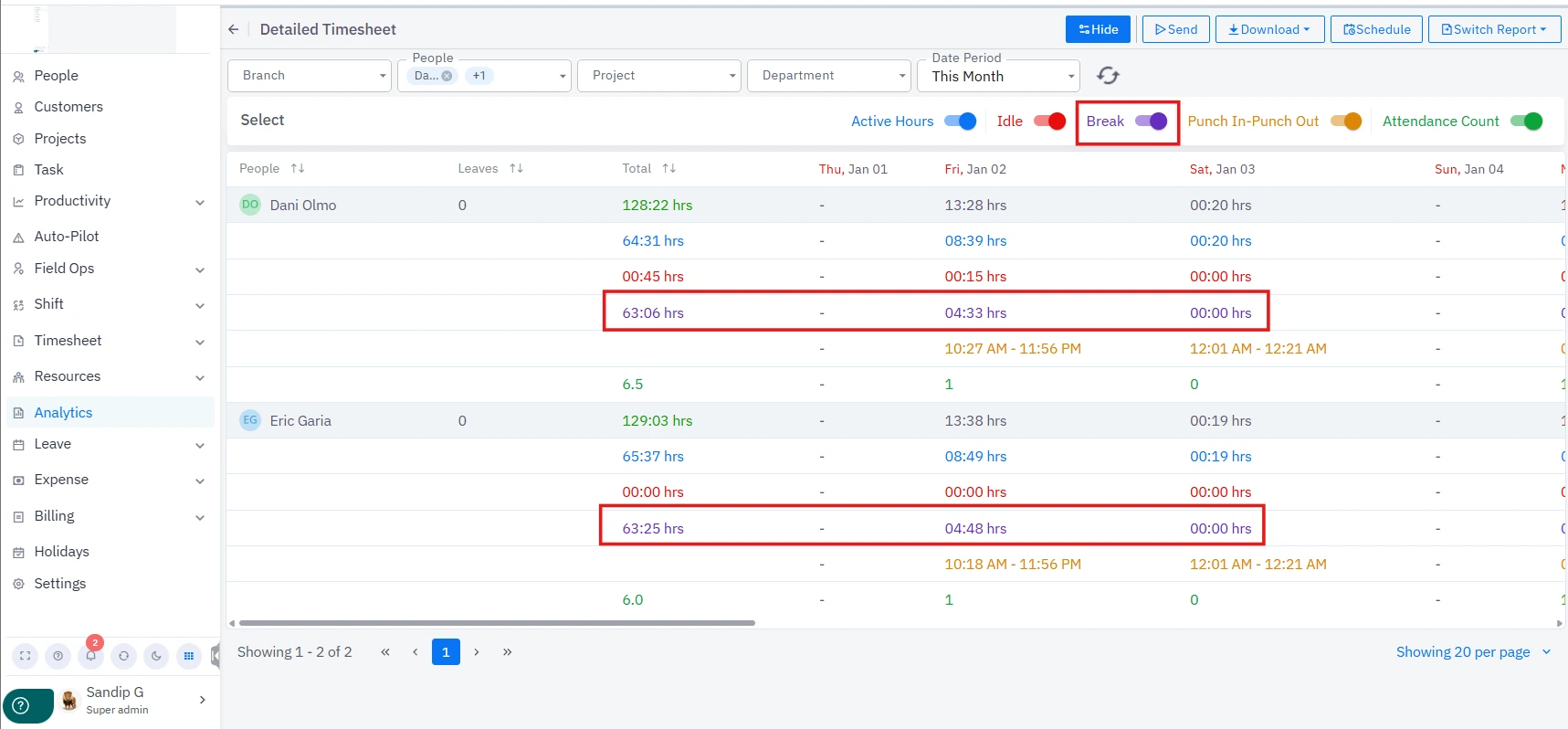
- Admins can now view total break time for a user across selectable ranges (day, week, month, last week, last month, or any custom period).
- User filter preferences are preserved between sessions for faster and personalized access.
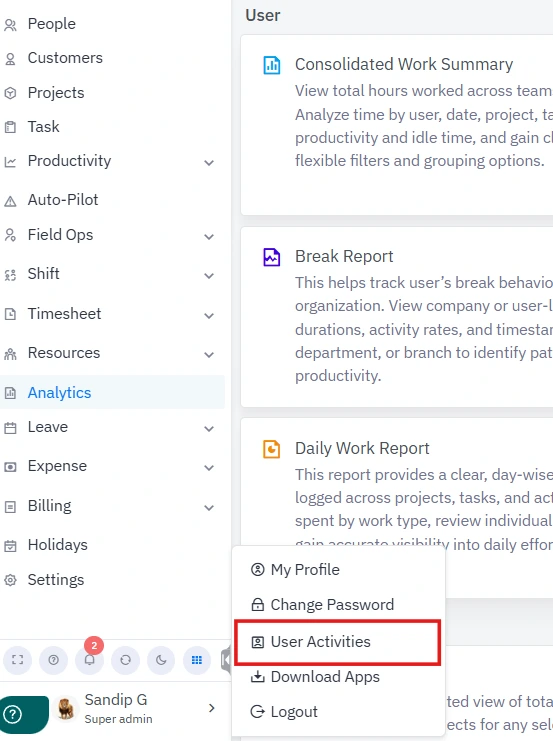
- Users can access User Activities from their profile menu to view and export activity logs.
- Activity reports are downloadable per individual or for all direct reports, in PDF and Excel formats for flexible auditing.
User Side Panel
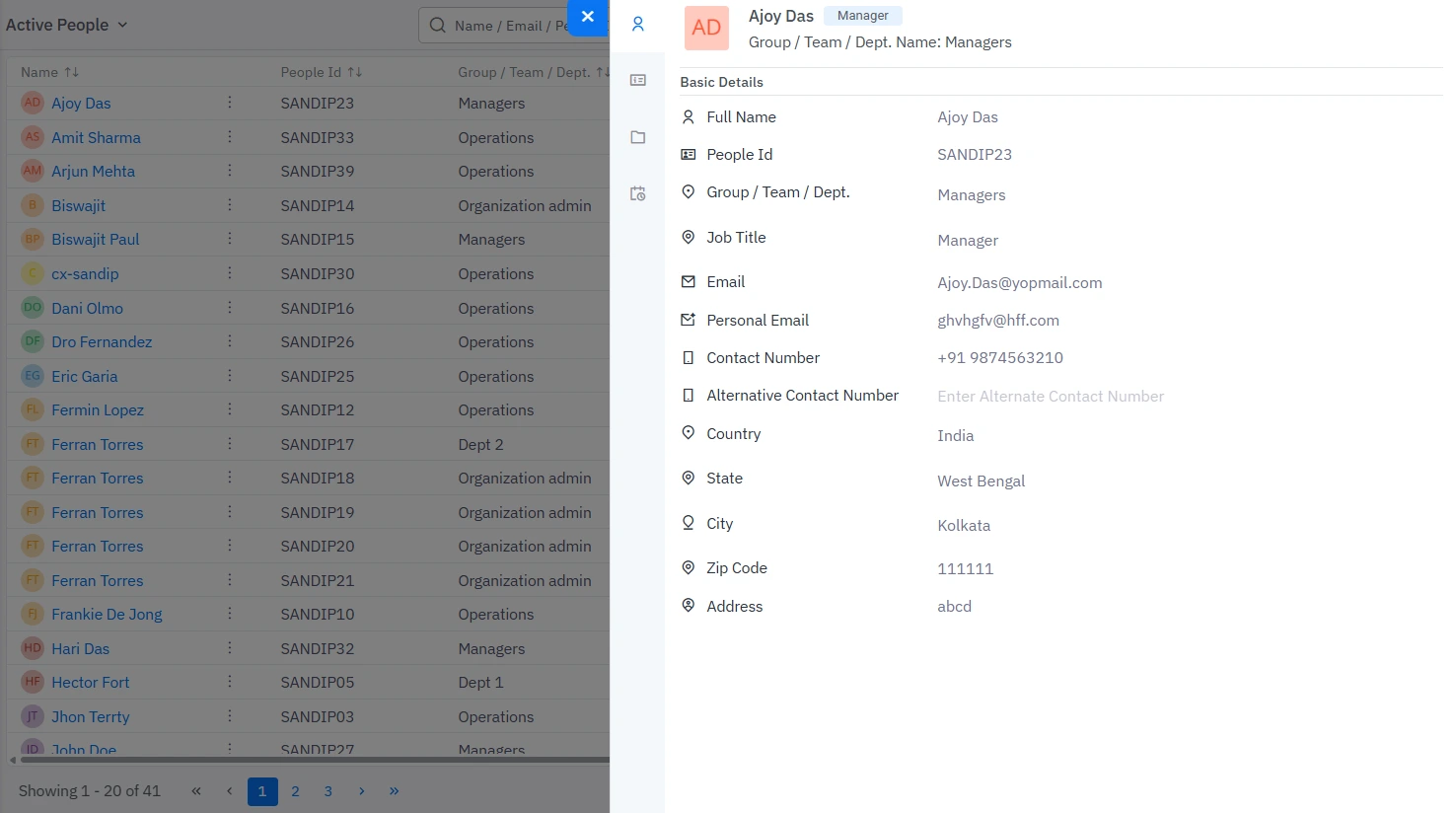
- The individual user side panel has been fully redesigned to surface key profile, role, and status information more clearly.
Import People (CSV / Excel)
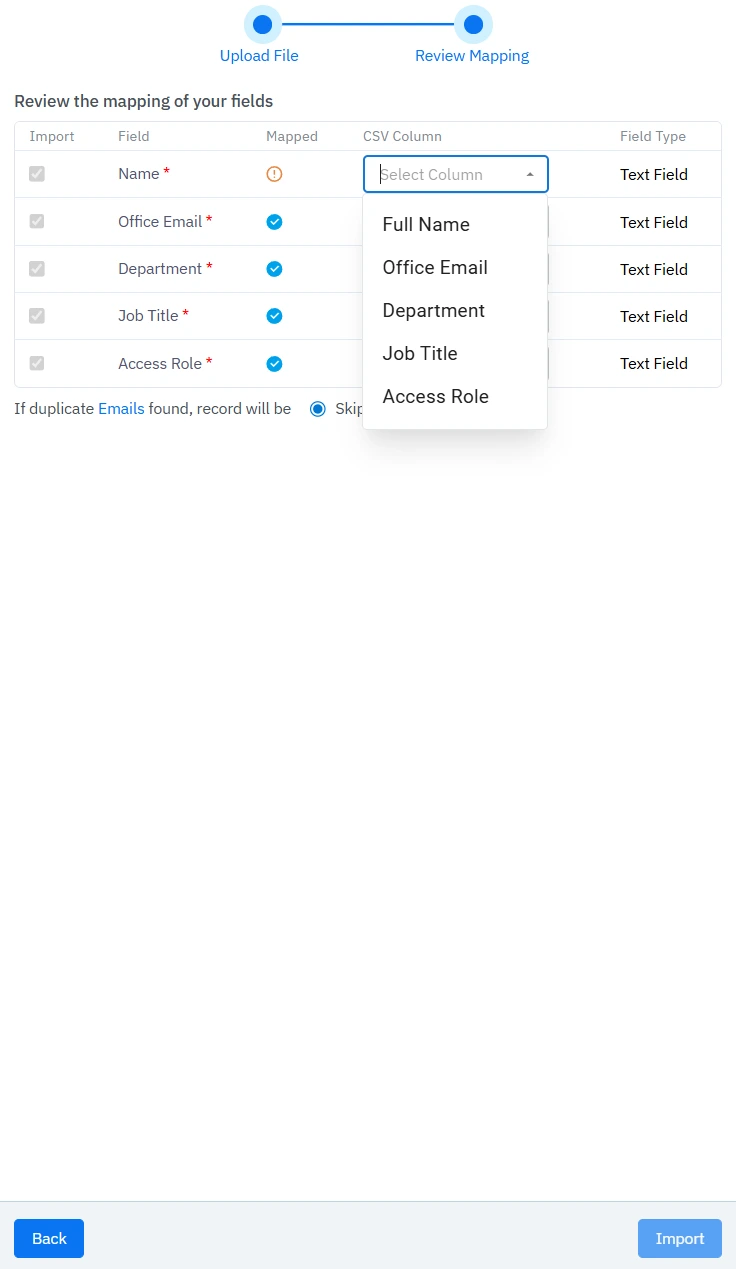
- The CSV import format has changed. Files with correct headers now automap in the Review Mapping step.
- If CSV headers differ, manually map columns in Review Mapping to match TeamTrace fields.
You need to map the field present in the TeamTrace platform with the one present in the CSV / Excel file.
Note: Imports will succeed only when referenced entities (office email domain, department, job title, access role) exist in the TeamTrace database, and CSV values are valid.
Approver Settings
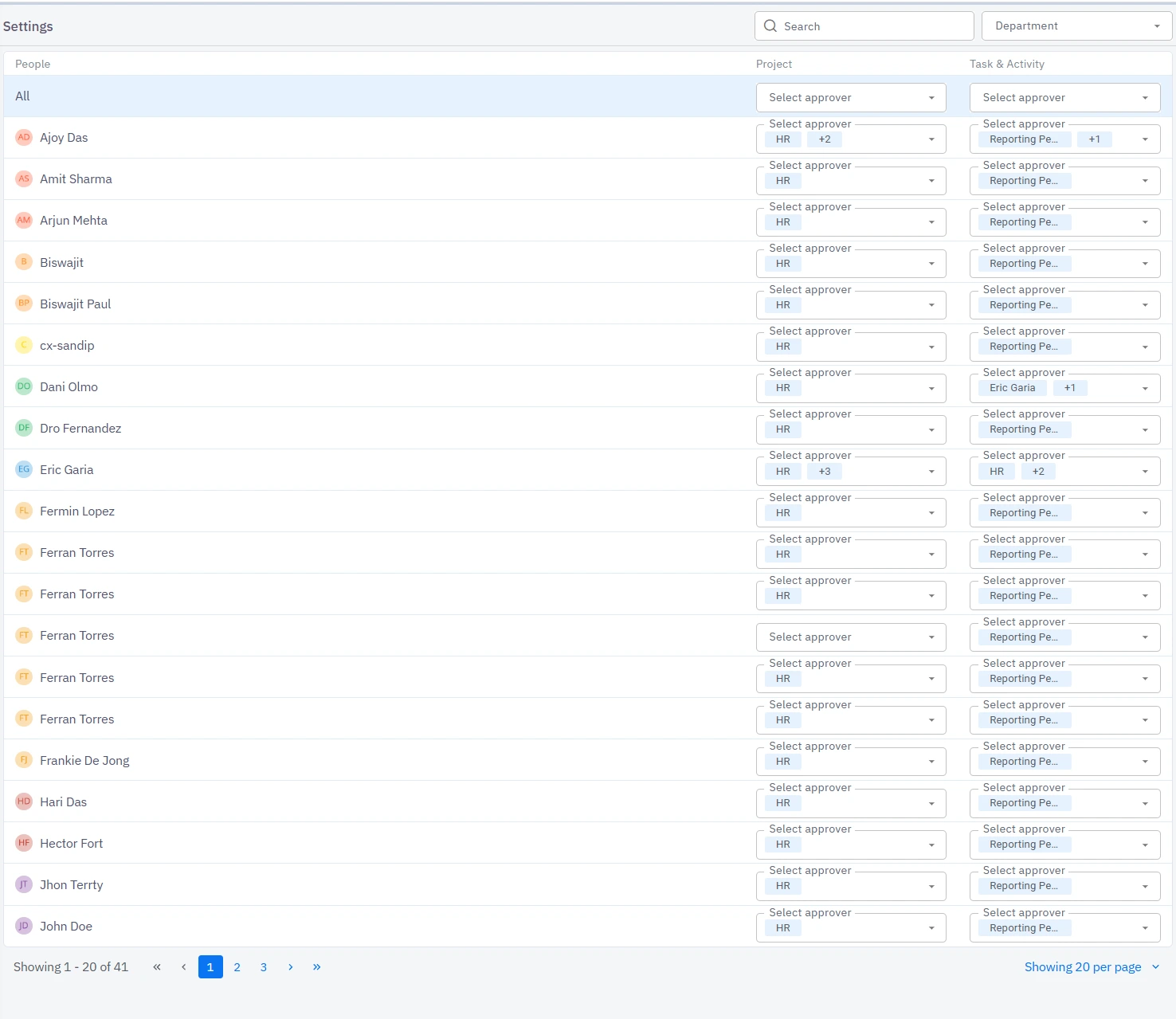
- Configure department-specific approvers for timesheets, projects, tasks, and activities from Settings.
- Default approver options are provided (3 for Projects and 2 for Tasks & Activities).
Approvals Workflow
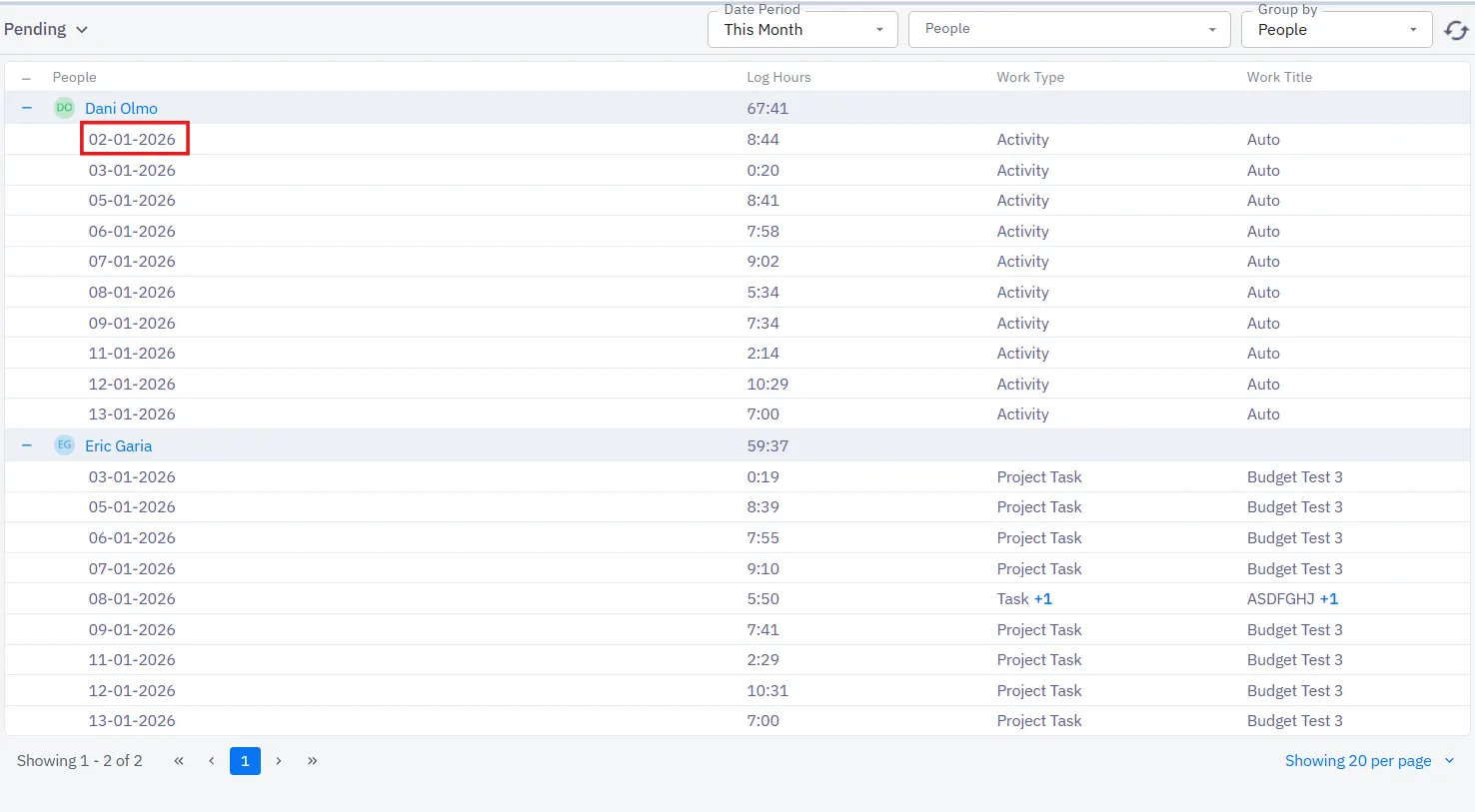
Once you have set up the approvers from the settings tab, you now get the option to approve or reject timesheets for users.
- After approvers are configured, timesheets appear under Pending for review.
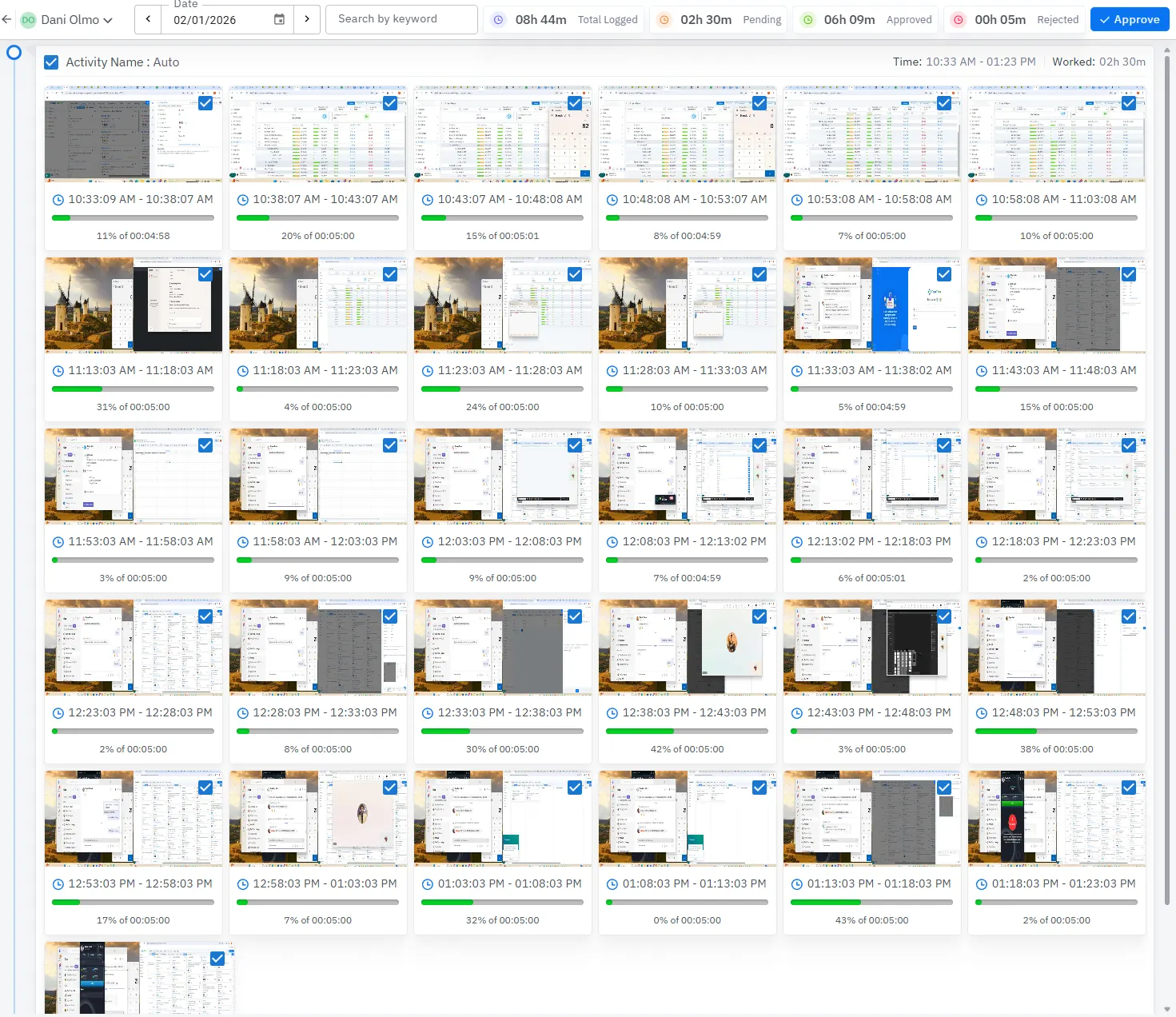
- Approvers can bulk-approve or select individual entries to approve.
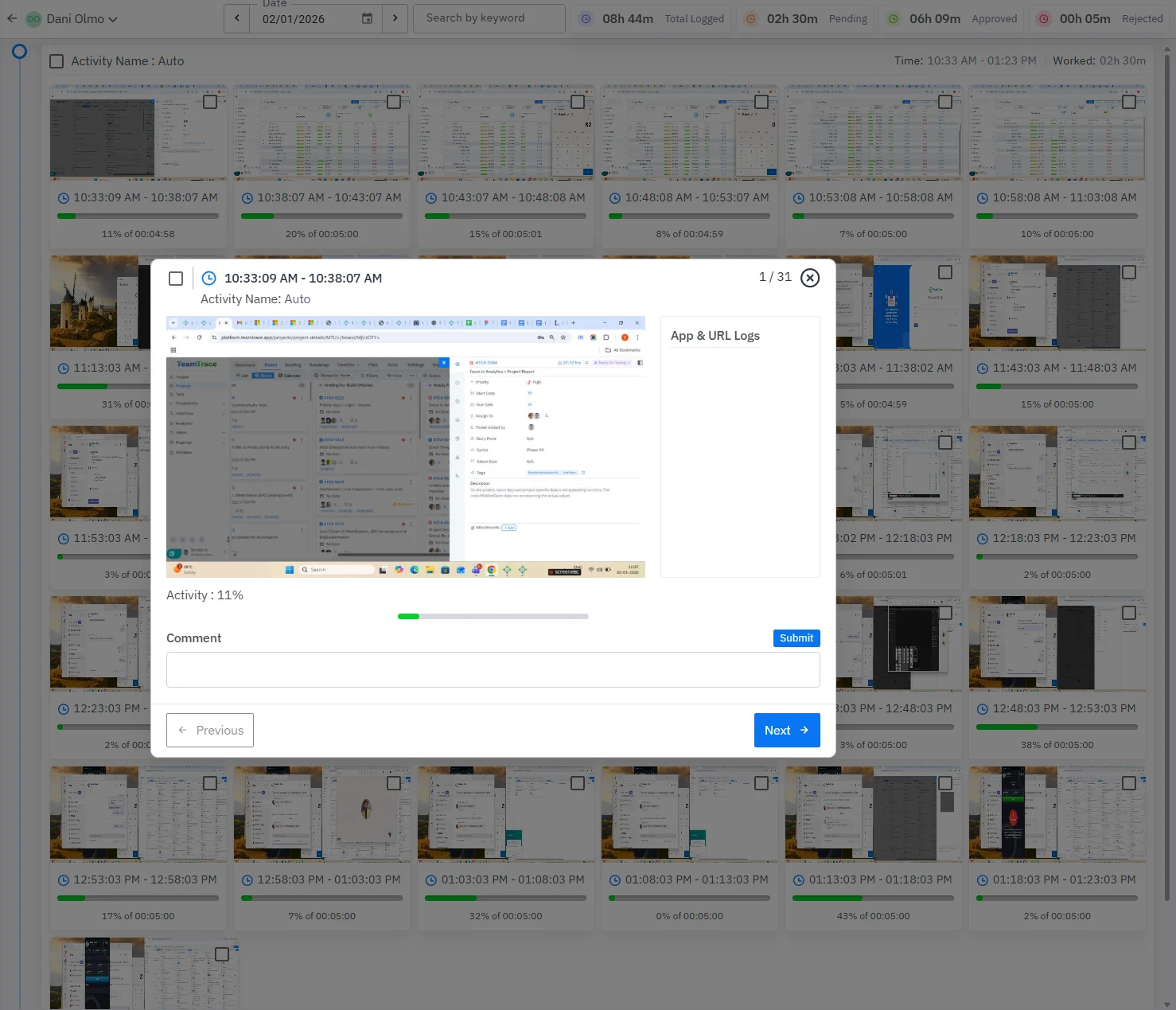
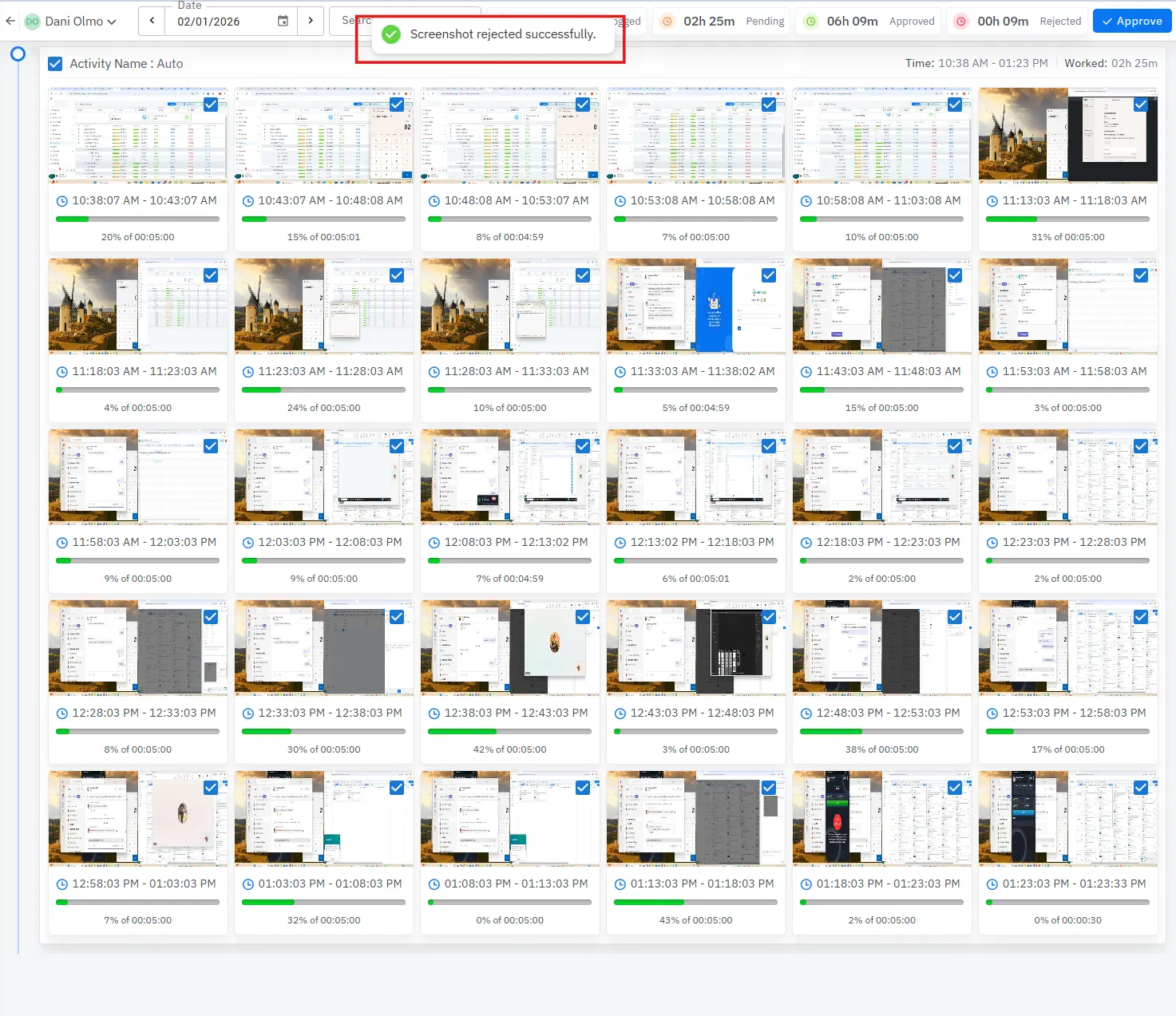
- To reject an entry, open the specific timesheet screen, add a comment, and submit. An acknowledgement pop-up confirms the action.
- The Reviewed section lists timesheets that have been approved or rejected.
- My Timesheet lets users view which of their timesheets were approved or rejected and inspect detailed entries by date.
Workspace & Page Settings
- New global workspace settings apply to all pages created within a workspace.
- Page Settings can now be edited while writing or after publishing the page.
Editable & TOC Controls
- Toggle Wrap Text for all the page and subpage names under the workspace directly from the header.
- Table of Contents (TOC) can be enabled from page settings. TOC now supports a Wrap Text toggle.
- Users can lock, unlock, download, view page history, or delete pages while editing. No need to publish first to access these actions.
User Specific Live Screen
- Admins can now view a user’s live screen view with a single toggle, enabling quicker troubleshooting and real-time oversight.

 TeamTrace