
 TeamTrace
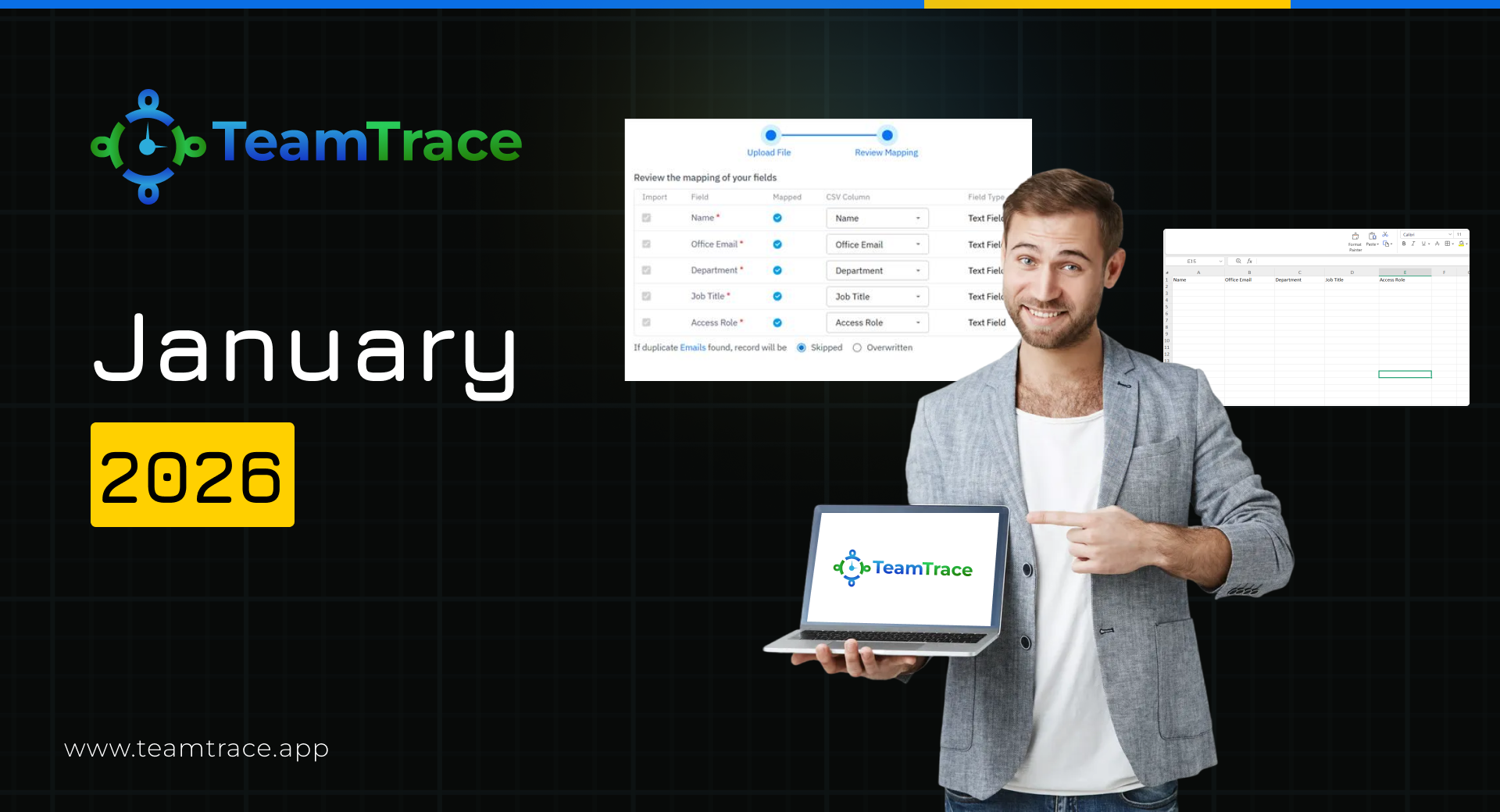


Our January 2026 release focuses on improving visibility, flexibility, and day-to-day efficiency across TeamTrace. With new project enhancements, mobile attendance features, advanced analytics, and streamlined imports, teams can plan better, track smarter, and move faster.
Admins and managers can now import custom tickets directly into TeamTrace.
How it works:
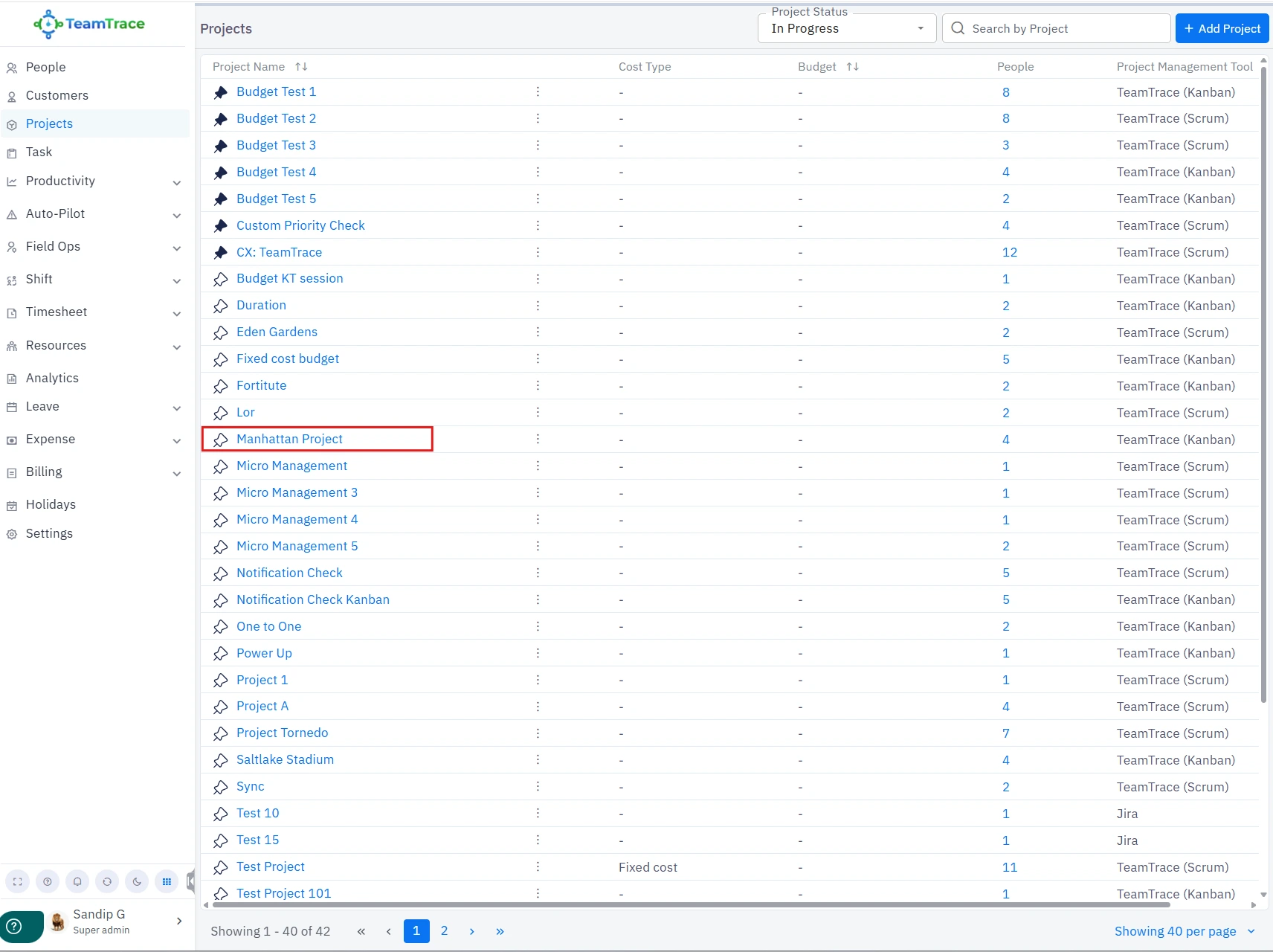
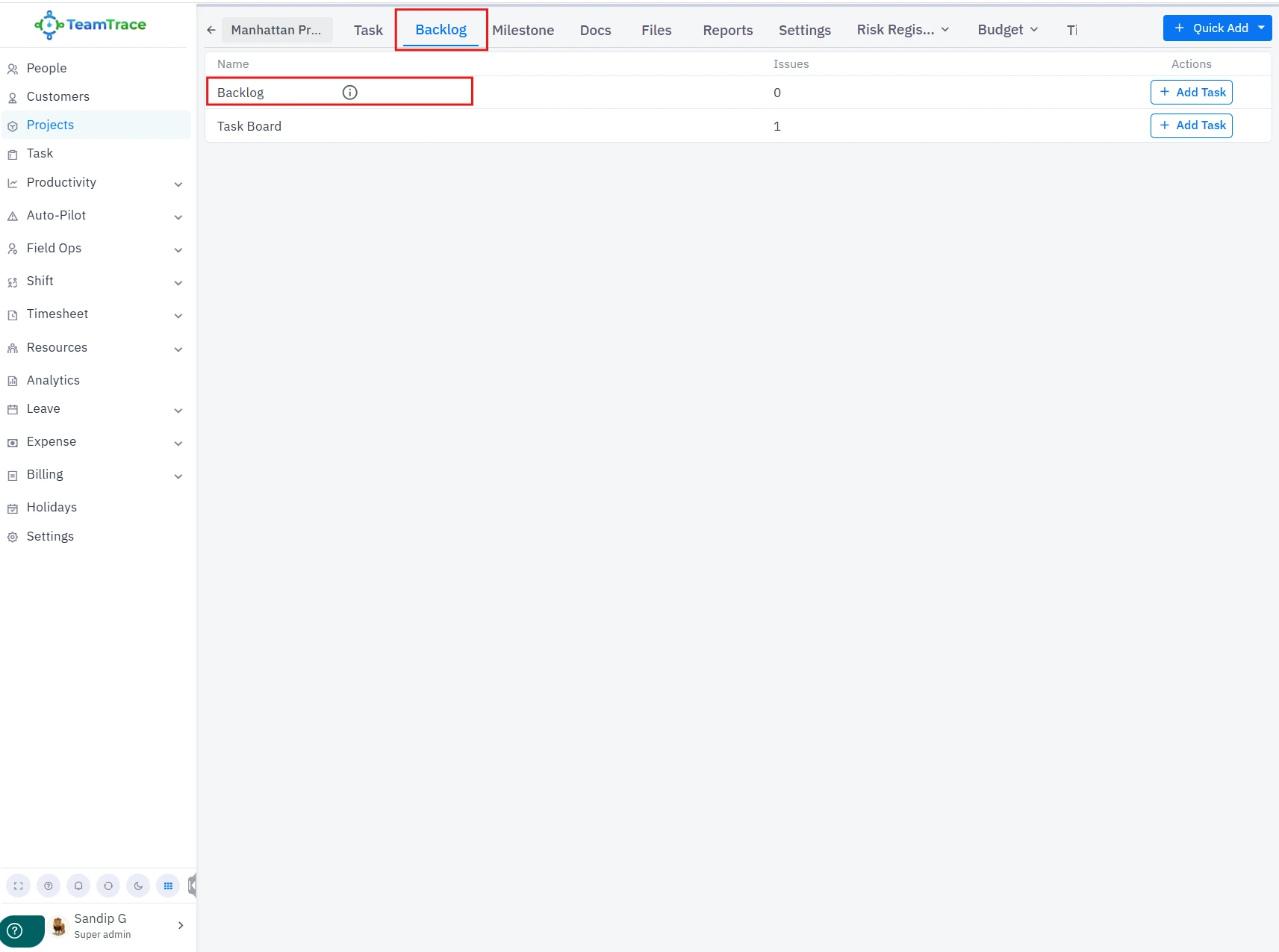
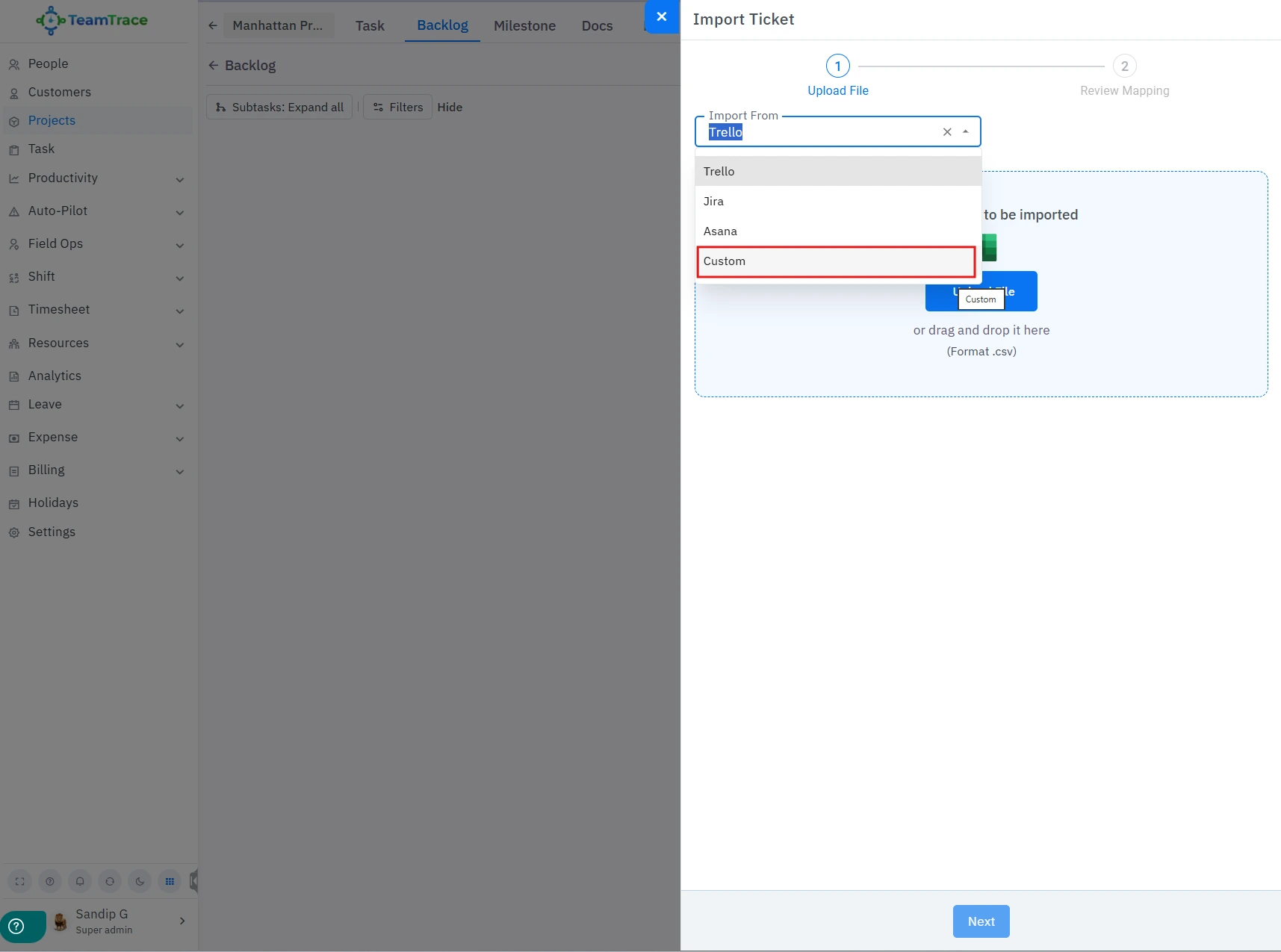
Once completed, the new tickets will be created and visible inside the Backlog.
Note: Tickets can only be imported into the Backlog section and cannot be imported directly on the board.
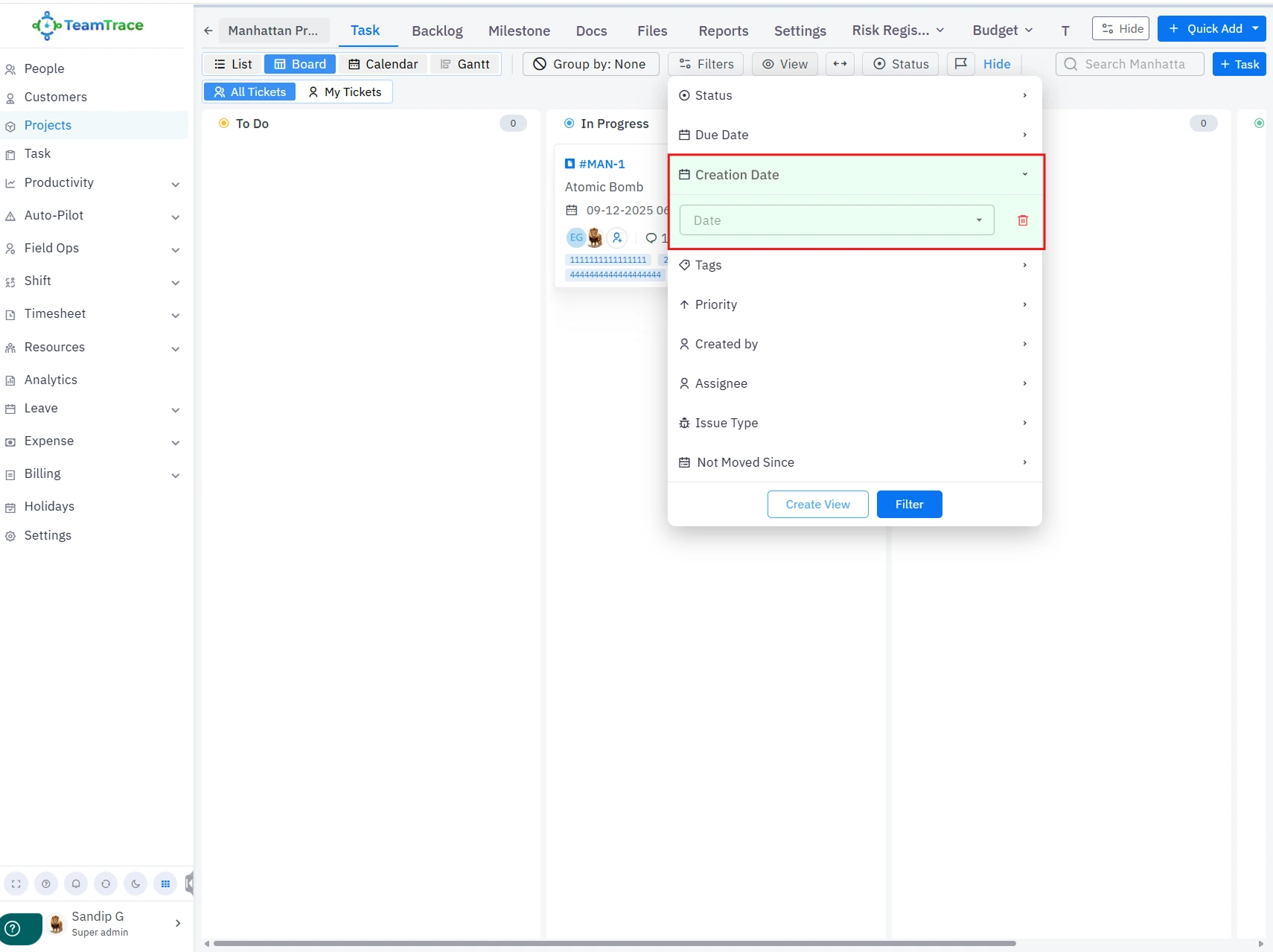
Users can now filter tickets by creation date within projects. A similar filtering option is also available for tasks.
Note: Tickets can only be imported into the Backlog section and cannot be imported directly on the board.
Users can now filter tickets by creation date within projects. A similar filtering option is also available for tasks.
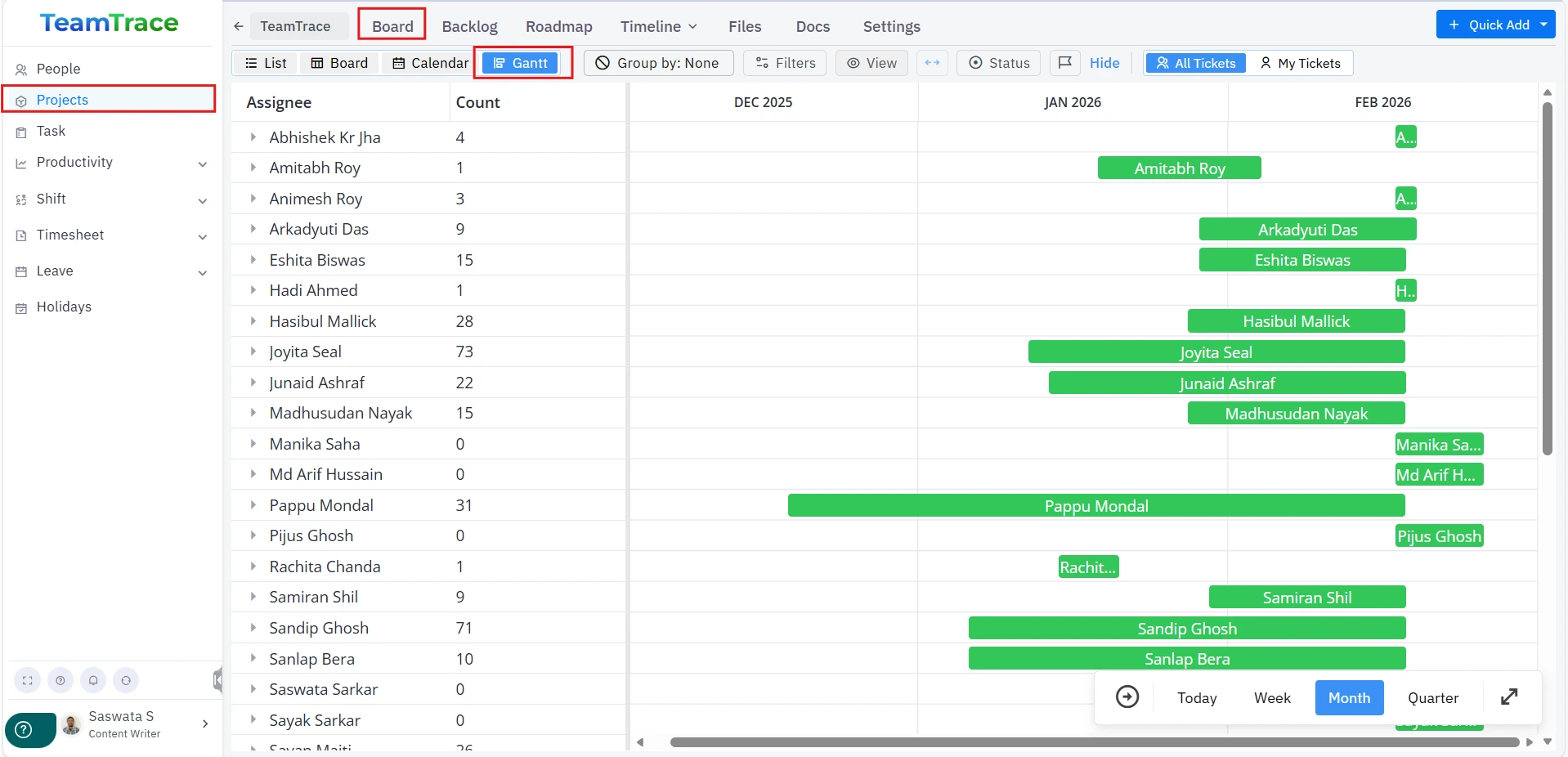
Admins, managers, and users can now view assigned tickets for themselves or all members within a project.
Users can now manage attendance directly from the TeamTrace mobile app.
Note: This feature is applicable only to field employees. Field employees can run the tracker from both their mobile devices and desktops/laptops. Non-field employees only have access to the tracker on desktop. However, if a user runs the tracker only on a desktop/laptop, their attendance will appear as absent in the mobile app because the tracker was not run on their mobile device. Therefore, this feature is intended specifically for the on-field workforce.
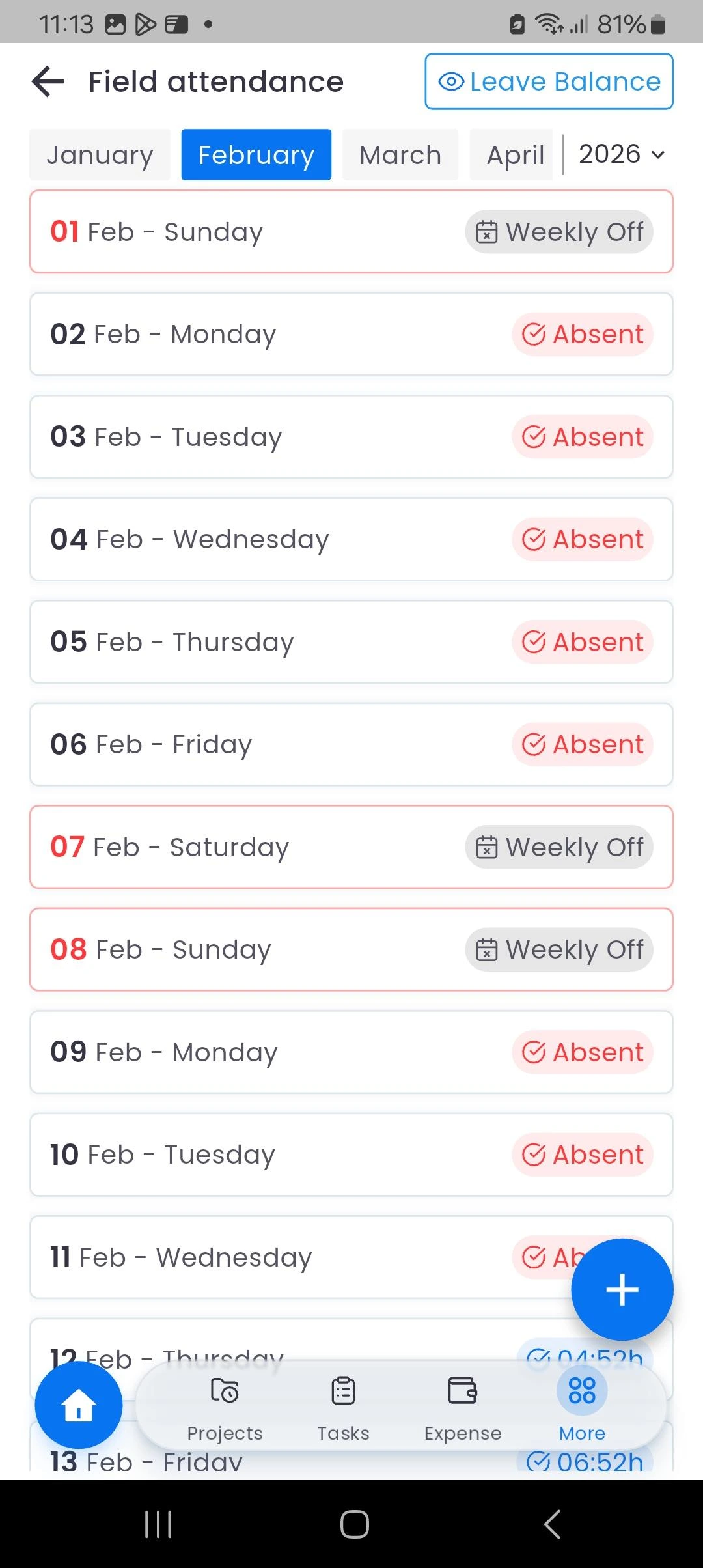
Features include:
Users can also:
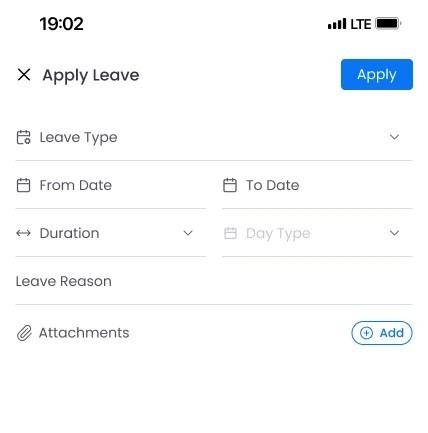
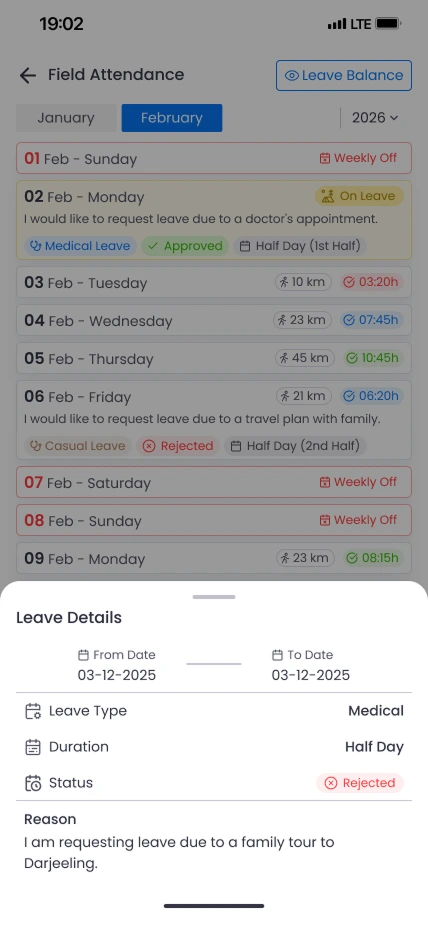
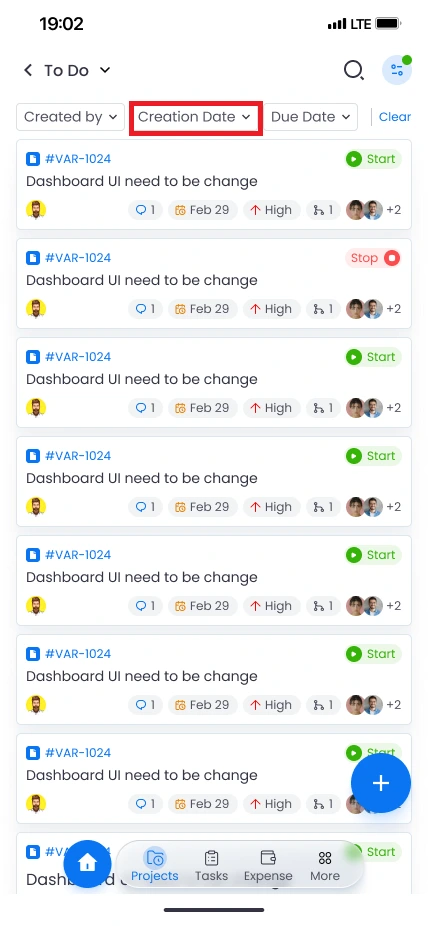
Users can now filter their tasks, tickets, and projects by creation date within the mobile app.
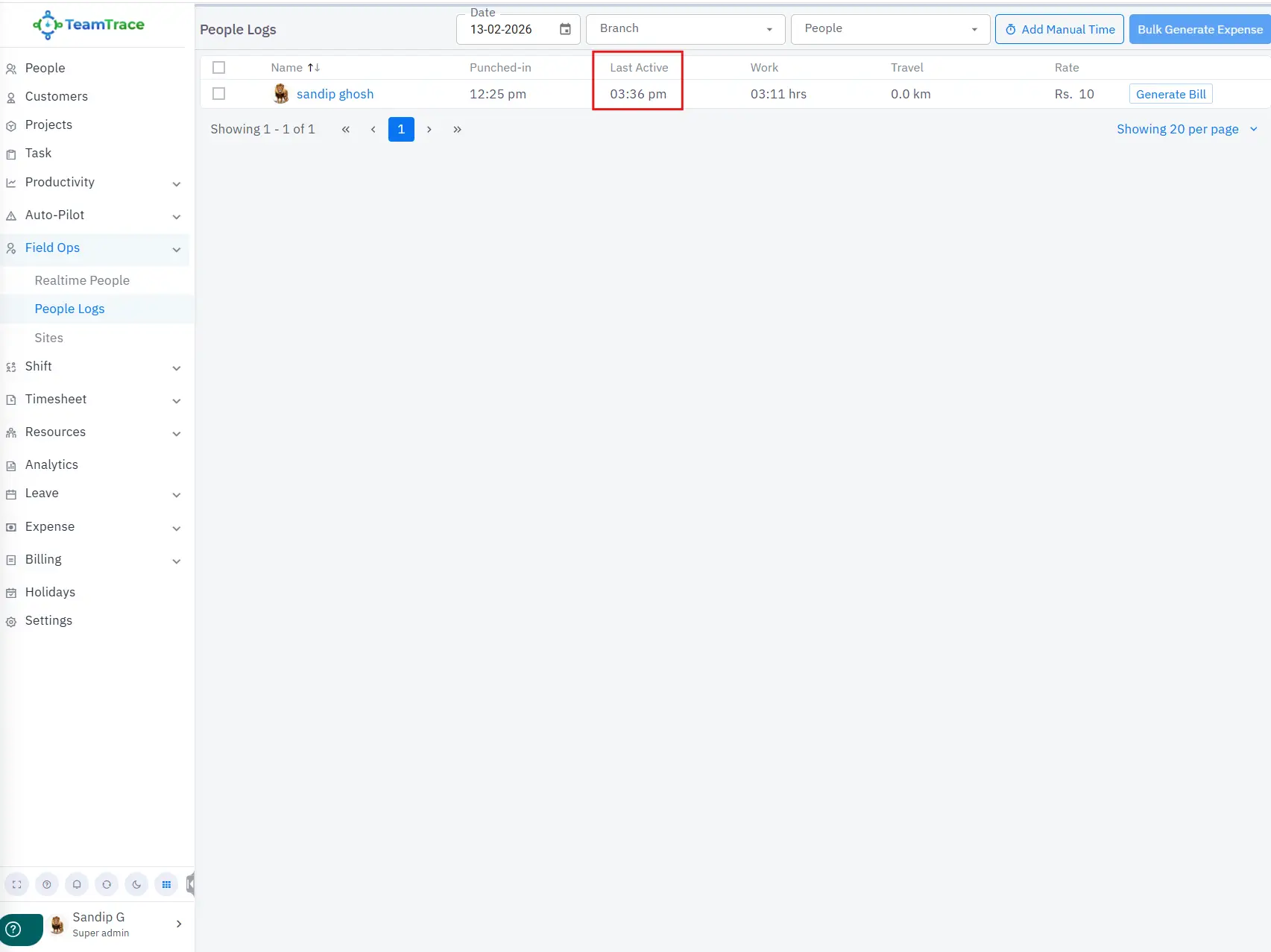
Admins can now view:
This improves visibility into field workforce activity and attendance patterns.
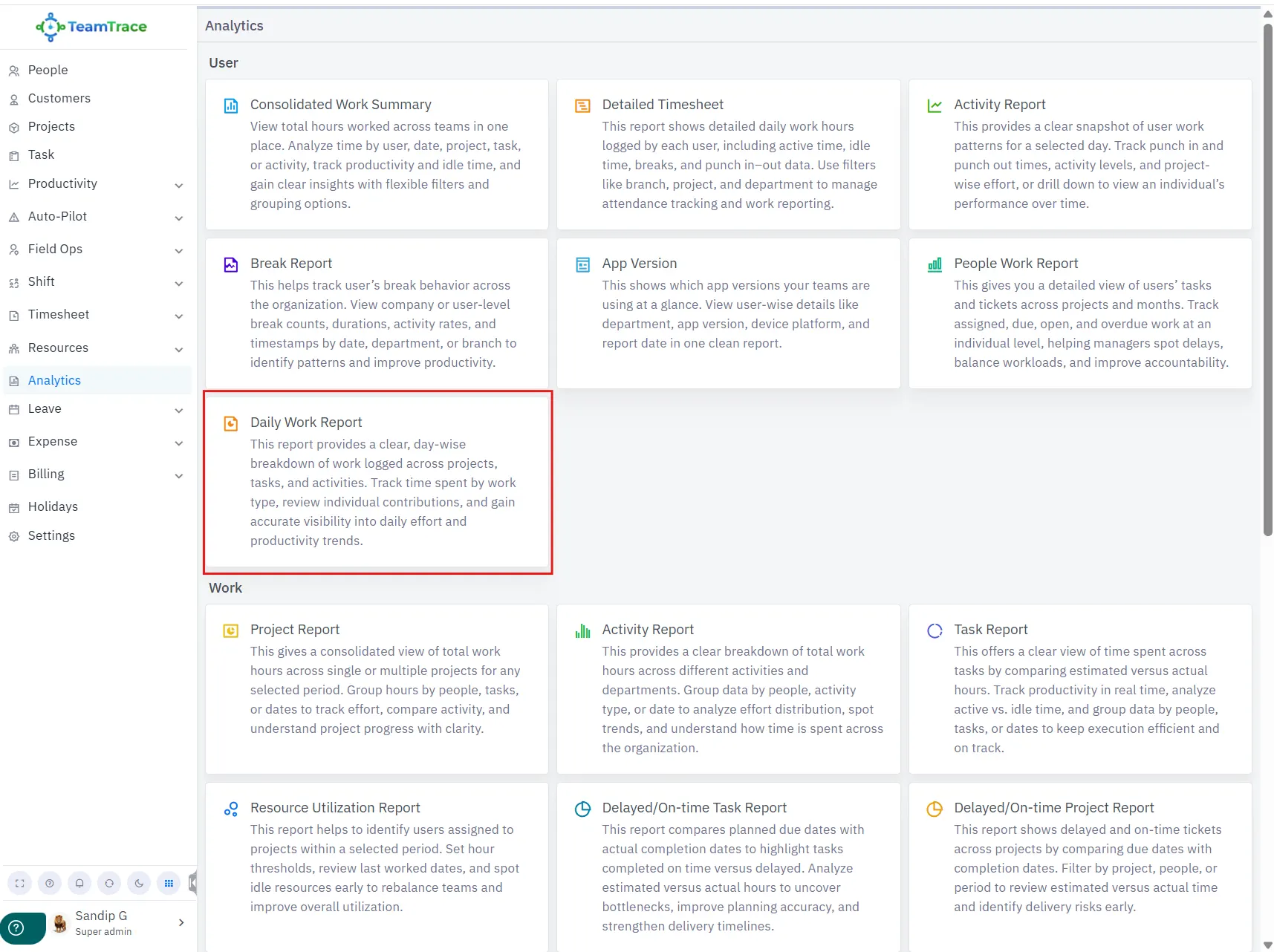
This report provides a clear and day-wise breakdown of work logged across projects, tasks, and activities.
Admins and managers can:
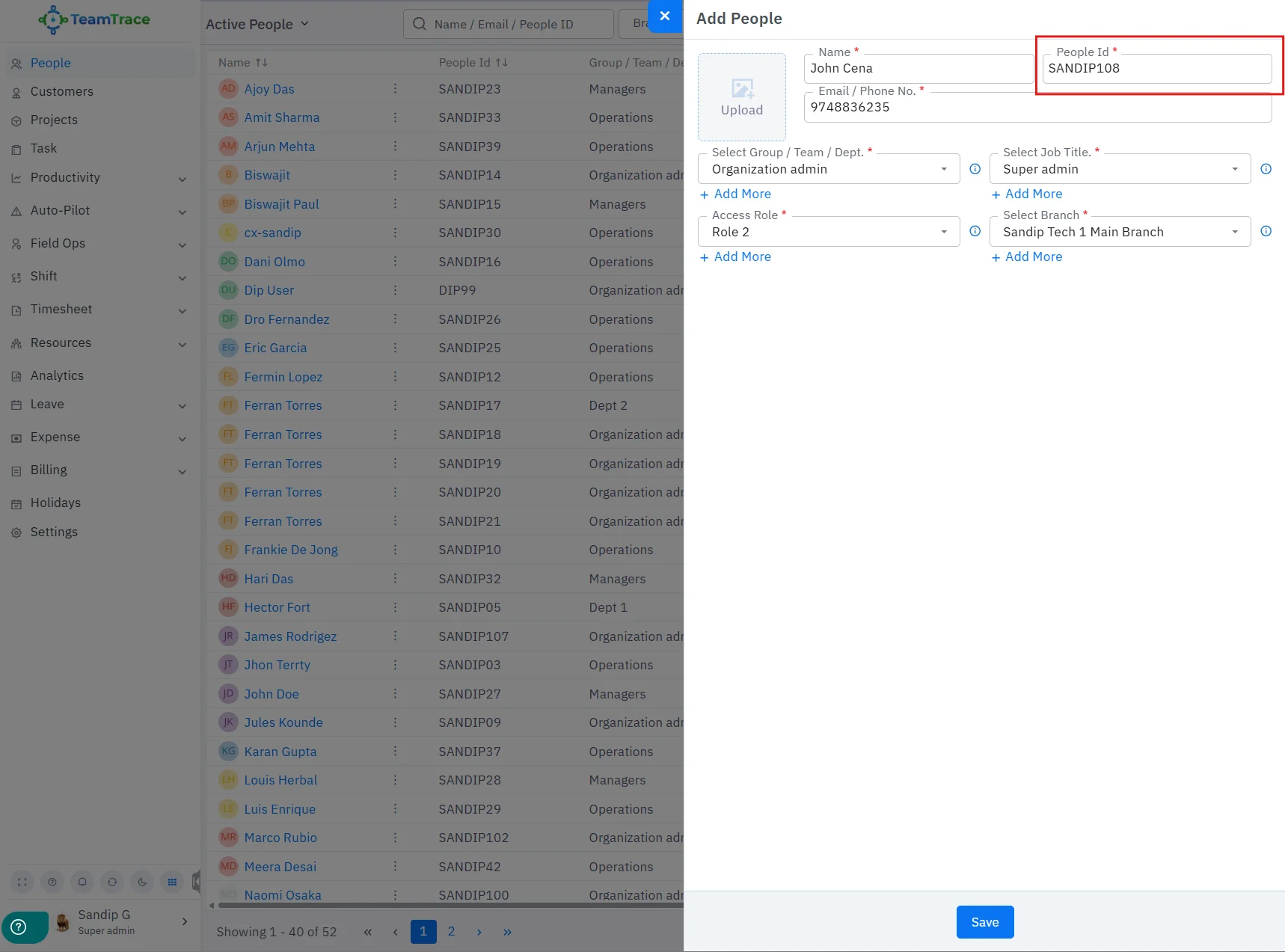
Admins can now create custom employee IDs when adding individuals manually or while importing people into the platform.
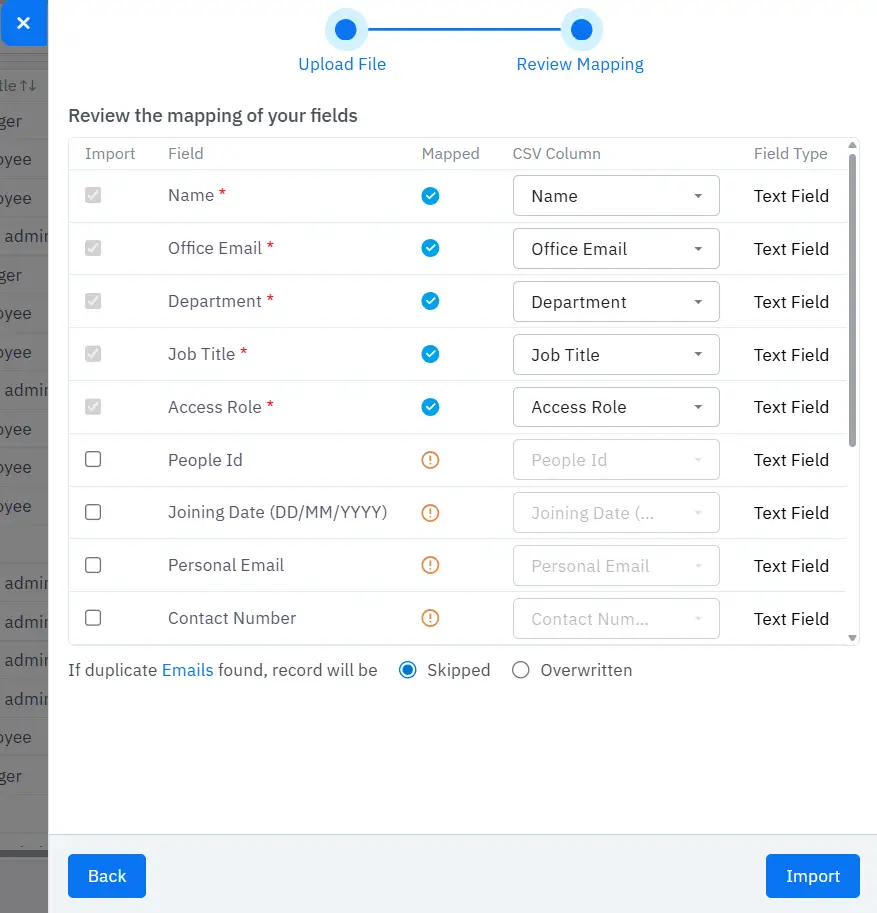
Admins and managers can bulk import people using CSV files.
Admins and managers can now bulk import customers.